I will update your MacOS machine with Better™ system defaults, preferences, software configuration and even auto-install some handy development tools and apps that my developer friends find helpful.
You don't need to install or configure anything upfront! This works with a brand-new machine from the factory as well as an existing machine that you've been working with for years.
- Forget About Manual Configuration!
- Watch me run!
- Installation
- Updating
- 3.x.x+ Upgrade Instructions!
- Additional
- Settings
- Software Installation
- License
- Contributions
- Loathing, Mehs and Praise
- Author
- ¯\(ツ)/¯ Warning / Liability
Don't you hate getting a new laptop or joining a new team and then spending a whole day setting up your system preferences and tools? Me too. That's why we automate; we did it once and we don't want to have to do it again.
\[^_^]/ - This started as Adam Eivy's MacOS shell configuration dotfiles but has grown to a multi-developer platform for machine configuration.
When I finish with your machine, you will be able to look at your command-line in full-screen mode like this (running iTerm):

Check out how your shell prompt includes the full path, node.js version & the working git branch along with a lot of other info!
We use powerlevel10k for command prompt, so customization of what you want is easily changable in ./.zshrc
The top terminal is using vim as a full replacement IDE.
The bottom left two are git terminals.
The bottom right is running vtop
To launch fullscreen, hit Command + Enter in iTerm, then use Command + d and Command + D to create split panes.
\[._.]/ - I'm so excited I just binaried in my pants!
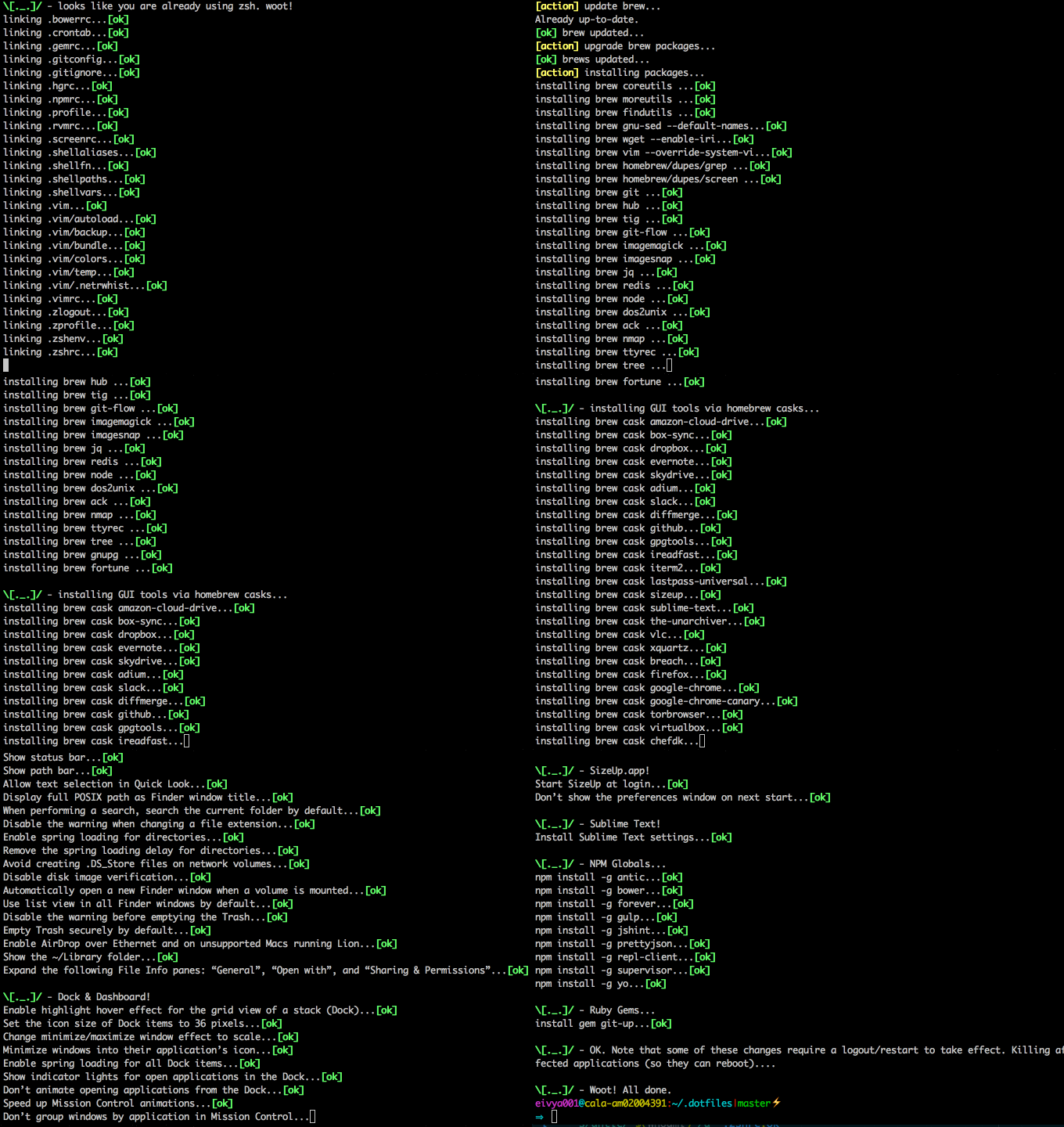
Note: I recommend forking this repo in case you don't like anything I do and want to set your own preferences (and pull request them!)
☢️ REVIEW WHAT THIS SCRIPT DOES PRIOR TO RUNNING It's always a good idea to review arbitrary code from the internet before running it on your machine with sudo power! You are responsible for everything this script does to your machine (see LICENSE) The creator of this repo has a high tolerance for nuking his machine and starting over. If you have a low tolerance for this, proceed with caution.
git clone --recurse-submodules https://github.com/atomantic/dotfiles ~/.dotfiles
cd ~/.dotfiles;
# run this using terminal (not iTerm, lest iTerm settings get discarded on exit)
./install.shinstall.sh is the single entry point for setting up a machine. It is interactive (it asks before each major step) and idempotent (safe to run again and again — re-run it any time you want to pick up new config or software). When you run it, it will:
- Back up any existing dotfile it is about to replace into
~/.dotfiles_backup/<timestamp>/(restore later with./restore.sh). - Symlink the files in
homedir/into your$HOME(.zshrc,.vimrc,.gitconfig,.shellaliases,.shellfn, etc.). - Prompt to configure your git identity (name, email, github username) and write it to the untracked
~/.gitconfig.local— kept out of version control and pulled into~/.gitconfigvia[include], so your personal info never lands in the repo. - Seed your machine-local override files (see below) so per-machine, private/proprietary settings stay out of the repo.
- Optionally overwrite
/etc/hostsusing StevenBlack/hosts (add your own entries inconfigs/hosts.local). - Apply macOS system tweaks — Finder, Dock, security, and more (see Settings).
- Prompt, per category, to install software: Homebrew CLI tools & desktop apps, npm globals, Mac App Store apps, and Ruby gems (see Software Installation).
Every prompt can be declined, so you can run it just to apply the parts you want. To upgrade an existing install later, use ./update.sh instead — it pulls the latest code and then runs install.sh for you.
Some settings are specific to one machine (work tools, proprietary config) and must not be committed or synced to your other machines. Keep them in these untracked override files — install.sh seeds them and then never touches them again, and they are git-ignored so they can't be committed:
| File | Loaded by | Use it for |
|---|---|---|
~/.gitconfig.local |
[include] in ~/.gitconfig |
git identity + any per-machine git config |
~/.gitignore.local |
git's core.excludesfile (seeded from the shared homedir/.gitignore baseline) |
global ignore entries, e.g. internal tool directories |
~/.zshrc.local |
source at the end of ~/.zshrc |
machine-local shell config, PATH entries, completions |
Edit these freely — they belong to you. The tracked files in homedir/ stay clean, so git pull / ./update.sh never conflicts with your local customizations. (~/.gitignore.local is a one-time copy of the shared baseline plus your additions; if the baseline changes later you can re-copy the top section.)
- When it finishes, open iTerm and press
Command + ,to open preferences. Under Profiles > Colors, select "Load Presets" and choose theSolarized Dark Patchscheme. If it isn't there for some reason, import it from~/.dotfiles/configs-- you may also need to select theHackfont and check the box for non-ascii font and set toRoboto Mono For Powerline(I've had mixed results for automating these settings--love a pull request that improves this) - I've also found that you need to reboot before fast key repeat will be enabled
Note: if you have problems cloning the submodules behind proxy, you can use this command to convert
git://tohttps://:git config --global url.https://github.com/.insteadOf git://github.com/
Note: I regularly add new configurations and software, so this repo keeps growing and optimizing. To pull those changes into an existing install at any time, run
./update.sh.
If you have existing dotfiles for configuring git, zsh, vim, etc, these will be backed-up into ~/.dotfiles_backup/$(date +"%Y.%m.%d.%H.%M.%S") and replaced with the files from this project. You can restore your original dotfiles by using ./restore.sh $RESTOREDATE where $RESTOREDATE is the date folder name you want to restore.
The restore script does not currently restore system settings--only your original dotfiles. To restore system settings, you'll need to manually undo what you don't like (so don't forget to fork, review, tweak)
Use install.sh for the first-time setup on a machine; use update.sh to upgrade an existing install to the latest version of this repo. To update, just run:
cd ~/.dotfiles
./update.sh
update.sh upgrades you safely, in this order:
- Migrations — runs any one-off upgrades for things that changed shape since your last update (e.g. moving your git identity out of the tracked
homedir/.gitconfiginto the untracked~/.gitconfig.local). These run before the pull when needed, so the pull stays conflict-free, and each is a no-op when it doesn't apply. - Safe pull — if you're on a feature branch it stashes your local work and switches to
main, then pulls withgit pull --rebase --autostashand updates submodules. - Re-runs
install.sh— interactively, to apply any new config, symlinks, and software prompts.
It is idempotent — safe to run as often as you like — and any file it has to replace is backed up under ~/.dotfiles_backup/<timestamp>/ first (restore with ./restore.sh). If the pull hits a conflict it can't resolve, update.sh stops and tells you how to recover rather than leaving a half-applied update.
3.0.0 brings huge changes. If you have made any modifications (and didn't make your own fork), you will want to backup your dotfiles prior to running git-up or git pull on ~/.dotfiles.
Do the following to upgrade your ~/.dotfiles safely:
- backup your dotfiles:
cp -R ~/.dotfiles ~/.dotfiles_old cd ~/.dotfiles- update dotfiles:
git uporgit pull - remove old submodule location:
rm -rf .vim(now lives inhomedir/.vim) - inspect
install.shand thesoftware/directory to make sure all the software you want is installed - inspect
homedir/*for any changes you want to port from./dotfiles_old - run
install.shagain
I am moving away from using Atom and instead using vim as my IDE. I use Vundle to manage vim plugins (instead of pathogen). Vundle is better in many ways and is compatible with pathogen plugins. Additionally, vundle will manage and install its own plugins so we don't have to use git submodules for all of them.
You can cron ~/.crontab if you want to add my nightly cron software updates.
\[0_0]/ - Note that this may wake you in the morning to compatibility issues so use only if you like being on the edge
- I highly recommend remapping your Caps Lock key to Control per Dr. Bunsen:
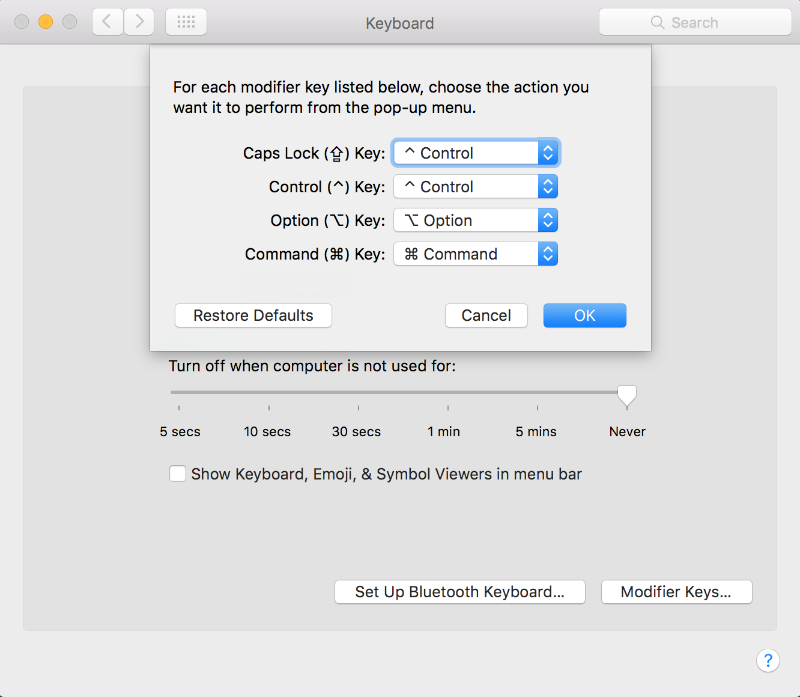
This project changes a number of settings and configures software on MacOS. Here is the current list:
The following will only happen if you agree on the prompt
-
overwrite your /etc/hosts file using the StevenBlack/hosts project. Add custom entries in
./configs/hosts.local. -
configure your git identity (name, email, github username). Your identity is written to
~/.gitconfig.local— an untracked file that the committed~/.gitconfigpulls in via[include]. This keeps your personal info out of version control, sogit pullon the dotfiles repo stays clean and you never risk committing your identity. Edit~/.gitconfig.localany time to change it. For multiple identities (e.g. work vs. personal), add anincludeIfblock to~/.gitconfig, for example:[includeIf "gitdir:~/work/"] path = ~/.gitconfig.work
- Enable firewall
- Enable firewall stealth mode (no response to ICMP / ping requests)
- Disable remote apple events
- Disable wake-on modem
- Disable wake-on LAN
- Disable guest account login
- always boot in verbose mode (not MacOS GUI mode)
- Disable the sound effects on boot
- Expand save panel by default
- Expand print panel by default
- allow 'locate' command
- Save to disk (not to iCloud) by default
- Automatically quit printer app once the print jobs complete
- Display ASCII control characters using caret notation in standard text views
- Disable the crash reporter
- Reveal IP, hostname, OS, etc. when clicking clock in login window
- Disable smart quotes as they’re annoying when typing code
- Disable smart dashes as they’re annoying when typing code
- Allow quitting via ⌘ + Q; doing so will also hide desktop icons
- Show hidden files by default
- Show all filename extensions
- Show status bar
- Show path bar
- Allow text selection in Quick Look
- Display full POSIX path as Finder window title
- When performing a search, search the current folder by default
- Disable the warning when changing a file extension
- Enable spring loading for directories
- Remove the spring loading delay for directories
- Avoid creating .DS_Store files on network volumes
- Disable disk image verification
- Automatically open a new Finder window when a volume is mounted
- Use list view in all Finder windows by default
- Disable the warning before emptying the Trash
- Empty Trash securely by default
- Enable AirDrop over Ethernet and on unsupported Macs running Lion
- Show the ~/Library folder
- Expand the following File Info panes: “General”, “Open with”, and “Sharing & Permissions”
- Enable highlight hover effect for the grid view of a stack (Dock)
- Set the icon size of Dock items to 36 pixels
- Change minimize/maximize window effect to scale
- Minimize windows into their application’s icon
- Enable spring loading for all Dock items
- Show indicator lights for open applications in the Dock
- Don’t animate opening applications from the Dock
- Speed up Mission Control animations
- Don’t automatically rearrange Spaces based on most recent use
- Remove the auto-hiding Dock delay
- Remove the animation when hiding/showing the Dock
- Automatically hide and show the Dock
- Make Dock icons of hidden applications translucent
- Make Dock more transparent
- Top left screen corner → Mission Control
- Top right screen corner → Desktop
- Bottom right screen corner → Start screen saver
- Disable Spotlight indexing for any volume that gets mounted and has not yet been indexed
- Change indexing order and disable some file types from being indexed
- Load new settings before rebuilding the index
- Make sure indexing is enabled for the main volume
- Installing the Solarized Dark theme for iTerm
- Don’t display the annoying prompt when quitting iTerm
- Hide tab title bars
- Set system-wide hotkey to show/hide iterm with ctrl+tick (
^+ `) - Set normal font to Hack 12pt
- Set non-ascii font to Roboto Mono for Powerline 12pt
- Prevent Time Machine from prompting to use new hard drives as backup volume
- Disable local Time Machine backups
- Show the main window when launching Activity Monitor
- Visualize CPU usage in the Activity Monitor Dock icon
- Show all processes in Activity Monitor
- Sort Activity Monitor results by CPU usage
- Enable Dashboard dev mode (allows keeping widgets on the desktop)
- Use plain text mode for new TextEdit documents
- Open and save files as UTF-8 in TextEdit
- Enable the debug menu in Disk Utility
- Enable the WebKit Developer Tools in the Mac App Store
- Enable Debug Menu in the Mac App Store
- Disable automatic emoji substitution (i.e. use plain text smileys)
- Disable smart quotes as it’s annoying for messages that contain code
homebrew, fontconfig, git, nvm (node + npm), and zsh (latest) are all installed inside the install.sh as foundational software.
Additional software is configured in simple list files within the software/ directory and can be customized in your own fork/branch:
software/brew.list- Homebrew utilities and command-line toolssoftware/cask.list- Homebrew desktop applications (GUI apps)software/npm.list- Global NPM packagessoftware/mas.list- Mac App Store applicationssoftware/gem.list- Ruby gems
Each file contains one package per line, with # for comments.
You can add additional Homebrew packages by creating a .BrewFile in the homedir/ directory. This file should contain one package per line, with comments starting with #.
Example .BrewFile:
# Additional Homebrew packages
htop
neofetch
ripgrep
fd
exa
When running the installation script, you'll be prompted for each software type:
- Homebrew utilities - Command-line tools and utilities
- Homebrew desktop apps - GUI applications
- NPM global packages - Node.js packages installed globally
- Mac App Store apps - Applications from the Mac App Store
- Ruby gems - Ruby packages
Each prompt allows you to choose whether to install that category of software or skip it.
This project is licensed under ISC. Please fork, contribute and share.
Contributions are always welcome in the form of pull requests with explanatory comments.
Please refer to the Contributor Covenant
- Loathing should be directed into pull requests that make it better. woot.
- Bugs with the setup should be put as GitHub issues.
- Mehs should be > /dev/null
- Praise should be directed to

More here: https://adameivy.com
Warning: The creator of this repo is not responsible if your machine ends up in a state you are not happy with. If you are concerned, look at the code to review everything this will do to your machine :)